
Barcodes and 2D codes
OwnYourNiimbot makes 12 types of barcode and 4 types of 2D code. A barcode or code can hold fixed text, a spreadsheet column or a number that changes on each label.
Add a barcode
- Click Barcode or QR code in the Insert panel.
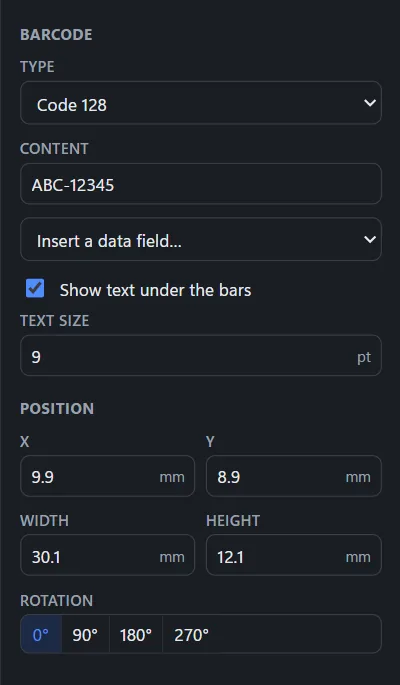
- In the right panel, select the Type.
- Type the value in Content.
- Drag a corner of the code to resize it.
If the value is not valid for the type, the code shows "Invalid value". For example, EAN-13 accepts digits only.
Barcode types
| Type | Example value | Common use |
|---|---|---|
| Code 128 | ABC-12345 | Asset tags, inventory, general use. Letters, digits and symbols |
| Code 39 | ABC123 | Older inventory and industrial systems |
| Code 93 | ABC123 | Logistics |
| EAN-13 | 590123412345 | Retail products outside North America |
| EAN-8 | 9638507 | Small retail products |
| UPC-A | 01234567890 | Retail products in North America |
| UPC-E | 0123456 | Small retail products in North America |
| ITF-14 | 0461234567890 | Cartons and outer packaging |
| Interleaved 2 of 5 | 12345678 | Warehouse and distribution. Digits only |
| Codabar | A12345B | Libraries and blood banks |
| GS1-128 | (01)09521234543213(3103)000123 | Shipping labels with GS1 application identifiers |
| MSI Plessey | 1234567 | Shelf labels |
The EAN and UPC examples leave out the check digit. The barcode library adds it.
Select Show text under the bars to print the value under the barcode, and set its Text size.
2D code types
| Type | Common use |
|---|---|
| QR code | Web addresses, Wi-Fi details, contact details, asset links |
| Data Matrix | Small parts and electronics. Stays readable at a very small size |
| PDF417 | Identity cards and transport documents |
| Aztec | Tickets and boarding passes |
A QR code has an Error correction setting: L, M (default), Q or H. A higher level keeps the code readable when part of it is damaged, but makes the code denser.
Values from a spreadsheet
Select Insert a data field under Content to put a spreadsheet column in the code, for example {{Asset}}. Each label of a batch gets the value of its row. You can mix fields and text, for example https://example.com/asset/{{Asset}}. See Batch printing.
For numbers that count up, use {{index}} or {{index:6}}, which gives the label number with leading zeros, for example ORD-{{index:6}}. See Data fields.
Print size and scanning
- The print preview shows the code at the printer resolution. Check that thin bars do not merge.
- On a 12 mm or 15 mm roll, use a short value or a Data Matrix code.
- Leave a blank margin around the code so that a scanner can find it.
- If a scanner cannot read the code, make it larger or increase the print density.