
Connect a printer
The app connects to the printer directly over Bluetooth or a USB cable. You do not pair the printer in the system settings and you do not install a driver.
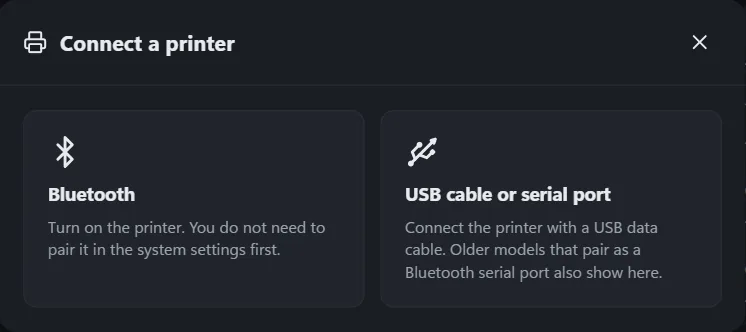
Connect over Bluetooth
- Turn on the printer. If the NIIMBOT phone app is connected to it, close the phone app first. The printer accepts one connection at a time.
- Click Connect printer at the top of the window.
- Click Bluetooth. The app looks for printers nearby.
- Select the printer. Its name starts with the model, for example
D110-.
The app connects and reads the printer details: the model, the firmware, the battery level and the loaded roll. The top bar shows the model and the battery level.
If the printer is not in the list, click Show all Bluetooth devices. Make sure that the printer is on and that no phone is connected to it.
Connect with a USB cable
- Connect the printer with a USB data cable and turn it on. Some cables carry power only and do not work.
- Click Connect printer, then USB cable or serial port.
- Select the serial port of the printer.
Older models that pair as a Bluetooth serial port also show in this list. On Linux, your user must be in the dialout group. See Install on Linux.
Pairing requests
NIIMBOT printers do not need pairing. If a Bluetooth device asks to pair with the computer while the app looks for printers, the app shows the request and its PIN. Click Pair only if you expect the request.
Last printer
The app remembers the last printer and sets Settings, Printer model when no printer is connected to that model. The label size and the print area stay correct after a restart and when the printer is off.
Disconnect
Open the Printer page and click Disconnect. Closing the app also disconnects the printer.
Connection problems
- "Bluetooth is not available on this computer": turn on Bluetooth in the system settings. On macOS, give the app Bluetooth access.
- "No printers found yet": turn the printer off and on, and close the phone app.
- "The printer service was not found": the selected device is not a NIIMBOT printer, or it uses a different command set.
- "The printer did not accept the data": disconnect the printer and connect it again.
See Troubleshooting for more.