
Batch printing from a spreadsheet
Print one label for each row of a spreadsheet, for example name badges, asset tags or server labels. The app reads .xlsx, .csv and .tsv files, and tables that you copy from Excel or Google Sheets.
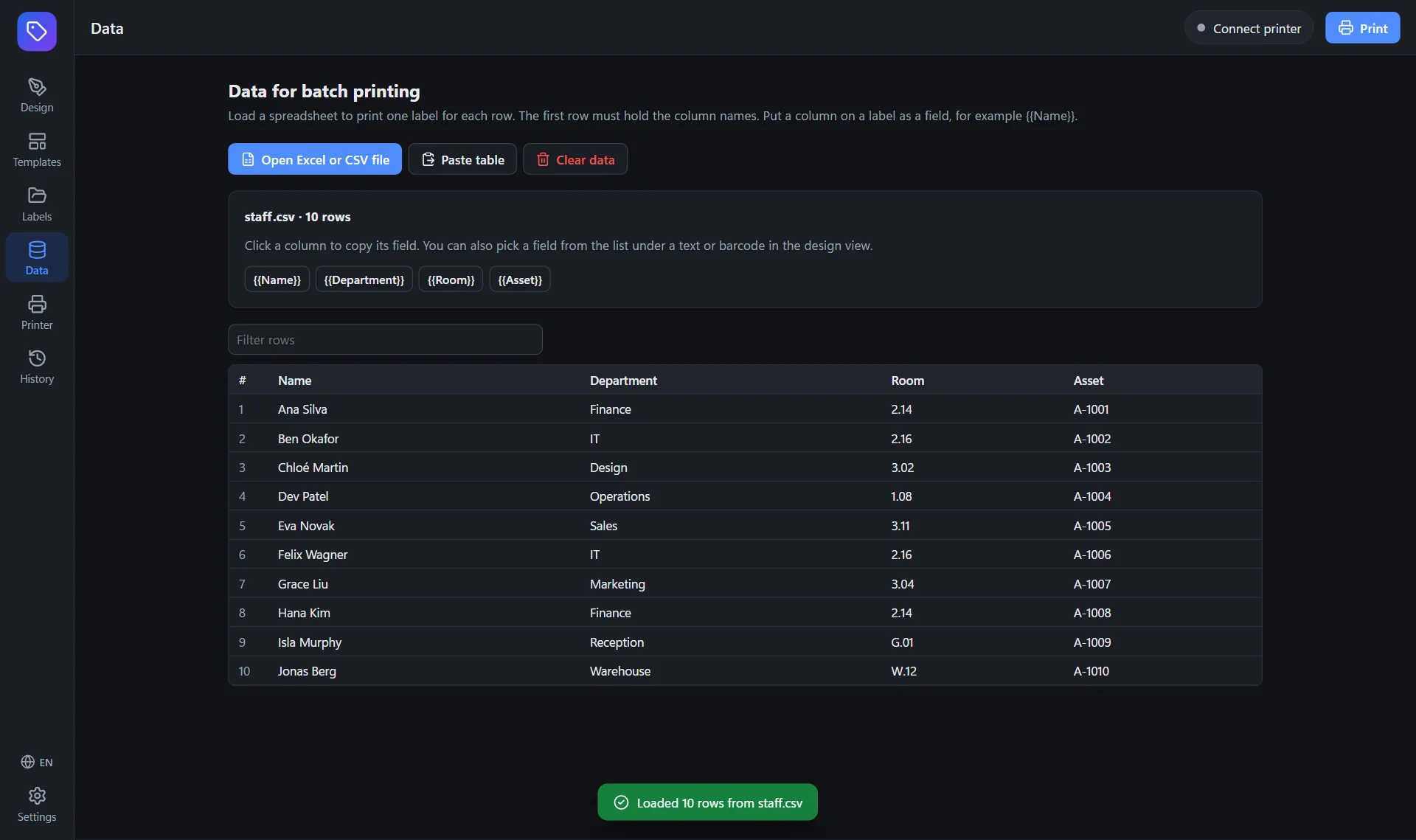
Prepare the data
The first row holds the column names. Each other row is one label. For example, staff.csv:
| Name | Room | Asset |
|---|---|---|
| Ana Silva | 2.14 | A-1001 |
| Ben Okafor | 2.16 | A-1002 |
| Chloé Martin | 3.02 | A-1003 |
Load the data
- Click Data in the side bar.
- Click Open Excel or CSV file and select the file. Or copy the cells in Excel or Google Sheets and click Paste table.
- The page shows the rows and a field button for each column, for example
{{Name}}. Click a field button to copy the field.
Use Filter rows to find rows. The page shows the first 1,000 rows, but the app prints all of them. Clear data removes the loaded data.
Put the fields on the label
- In the design view, select a text, barcode or QR code element.
- In the right panel, select a column in Insert a data field. The field shows as
{{Name}}. - Mix fields with normal text, for example
Room {{Room}}. Put{{Asset}}in a barcode to encode the asset number.
Field names match the column names without regard to upper and lower case. See Data fields for the built-in fields such as the date and the label number.
Print the rows
- Click Print.
- Under Data rows, set From and To to the first and the last row to print.
- Use the arrows under the preview to step through the labels.
- Set Copies of each label if you need more than one of each, then click Print.
If the label has a field with no matching column, the print dialog shows "No data column for" and the field names.
Limits
| Item | Limit |
|---|---|
| Rows in a data file | 20,000 |
| Columns in a data file | 200 |
| Characters in a cell | 4,000 |
| Rows saved with a label | 5,000 |
| Labels in one print job | 10,000. Print larger sets in parts with From and To |
Example template
The Server labels from a spreadsheet template is a ready example with the columns Hostname, IP, BMC, Serial and Role. Open it from the Templates page. Its example data loads with it.
Tips
- A serial number counts up across the batch, and a date can add a number of days.
- Save the label after you load the data, so that the label opens with its data next time.
- For a .xlsx file that is too large to open, save the sheet as CSV.