
Print dialog
Click Print or press Ctrl + P to open the print dialog. It shows the label as the printer receives it and the settings for the print job.
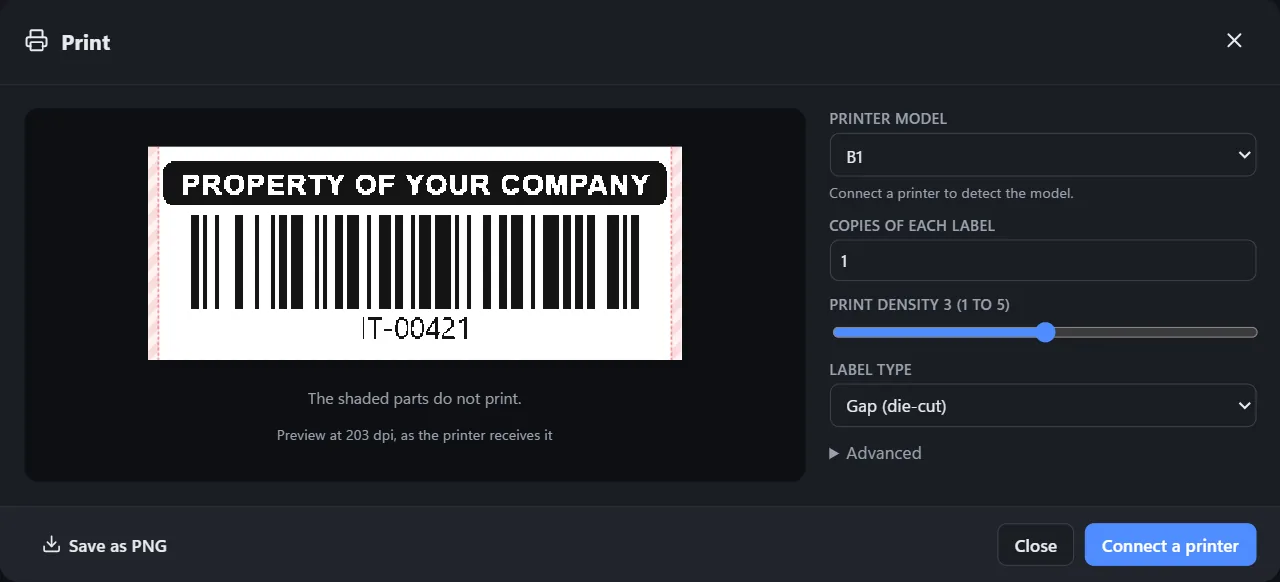
Preview
The preview shows the label at the printer resolution, for example "Preview at 203 dpi, as the printer receives it". Parts outside the print area are grey and do not print. For a batch, the arrows under the preview step through the labels: "Label 3 of 40".
Print settings
| Setting | Description |
|---|---|
| Printer model | Shows the connected printer. With no printer connected, select the model to see the preview at its resolution |
| Copies of each label | The number of copies of each label |
| Print density | How dark the printer prints. The range and the default depend on the model, for example 1 to 5 with 3 as the default |
| Label type | Gap (die-cut), black mark, continuous and the other types that the model supports. It must match the roll |
| Data rows | With data loaded: the first (From) and the last (To) row to print |
| Number of serial labels | With a serial number on the label: how many numbered labels to print |
Advanced settings
Click Advanced to show:
- Command set: Auto uses the command set for the model, for example "Auto uses Modern (B1 and newer) for the B1". Change it only if the printer does not print with the automatic choice.
- Turn the print 180°: prints the label turned by 180°. Settings, Turn every print 180° does the same for every print job.
Warnings
- "The printer has W × H mm labels loaded. This label is W × H mm.": the label size does not match the roll in the printer. Change the label size or the roll.
- "No data column for: Name": the label has a field with no matching column in the loaded data.
- "One print job can have up to 10,000 labels": print fewer copies, or print the data in parts with From and To.
- "The B3 uses a different command set (zicox)": the model does not use the NIIMBOT command set and the app cannot print to it. See Supported printers.
Click Print N labels. The dialog shows the progress: preparing the printer, sending and printing each label, then finishing. If the printer reports a problem, for example "The cover is open" or "No labels are loaded", the dialog shows it. Fix the problem and print again.
Each print job is saved in the print history.
Save as PNG
Click Save as PNG to save the preview as an image at the printer resolution. You do not need a printer for this.